
Safe lock help · Securam
Safe lock troubleshooting › Securam › ScanLogic fingerprint (Basic, D02, D22, D66)
The Securam ScanLogic locks open with a fingerprint, a code, or both. This guide covers the ScanLogic Basic (no screen, +/- keys) and the ScanLogic D02, D22 and D66 (screen with Menu/OK and arrow keys). It shows how to open, add a fingerprint, change a code, replace the 9-volt battery, and what the lights and beeps mean.
Want the whole manual? Jump to the manufacturer download links.
Is this your lock?
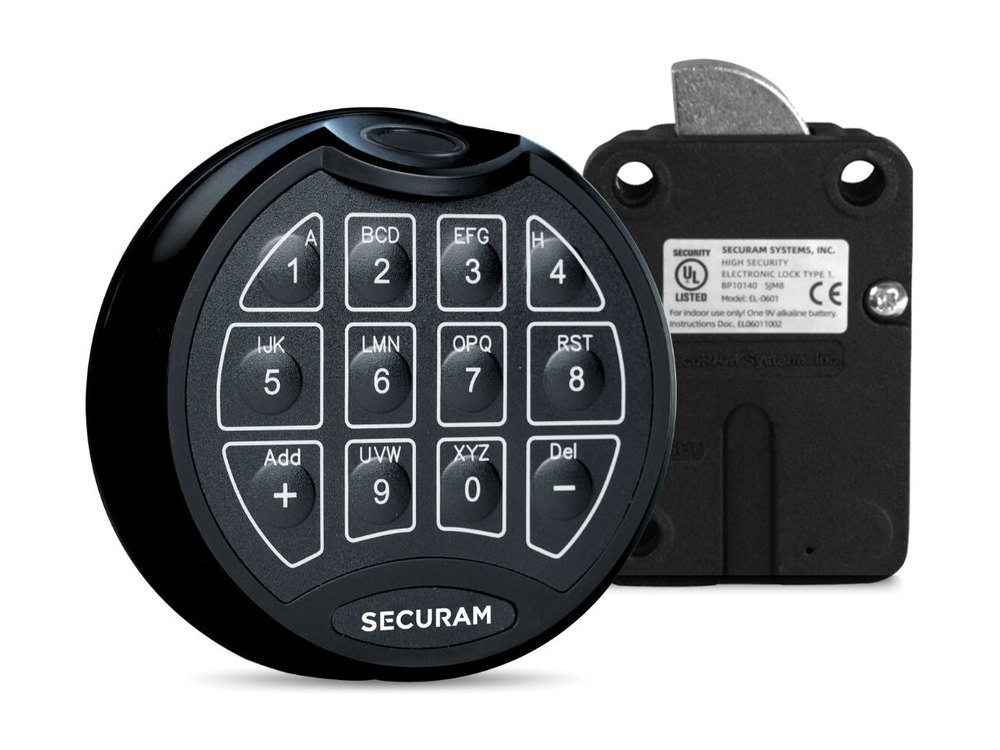
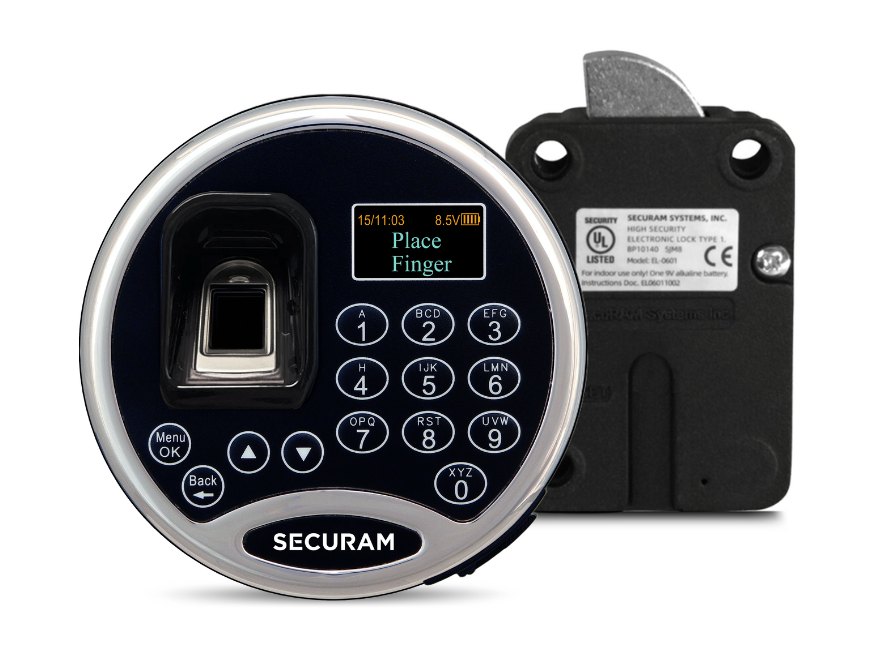
- ScanLogic Basic: a round black keypad with a fingerprint reader at the top, number keys, and + and – keys. There is no screen.
- ScanLogic D02, D22, D66: a round keypad with a fingerprint reader on the left, a small screen at the top right, number keys, arrow keys and Menu/OK.
- Both are powered by one 9-volt alkaline battery and use a 6-digit code.
- A Securam keypad with a screen but no fingerprint reader is a ProLogic. A keypad with no screen and no fingerprint reader is a SafeLogic. See those guides.
How to open it
- Place an enrolled finger on the fingerprint reader, or enter your 6-digit code. (On the default setting a fingerprint or a code works. If the lock is set to the higher security level, you need both.)
- On the ScanLogic Basic, green lights mean a valid fingerprint or code. Red lights mean it was not accepted.
- The lock opens. Turn the handle right away.
- To save battery, the Basic goes back to standby (two short beeps) if you do not press a button for 12 seconds. A change you were in the middle of has to be repeated from the start.
- Cover the keypad with your hand when you enter a code so no one can see which keys you press.
How to change the battery
Both lock types use one 9-volt alkaline battery (we recommend Procell). The Basic keypad flashes and beeps several times after you open the lock when the battery is low, and Securam’s summary sheet says it beeps 10 times. Replace it right away.
ScanLogic Basic
- Pull the latch of the battery compartment at the bottom of the keypad to its end, then pull the compartment out.
- Take out the old battery and put in a new 9-volt alkaline, with the + and – poles the right way round.
- Slide the compartment back in until it is in line with the cover, and press the latch down until it is tight.
- Press the + button. One beep means the keypad and the lock body are synchronized.
ScanLogic D02 / D22 / D66
- On the back of the keypad you will see one 9-volt alkaline battery. Take it out of the compartment.
- Unsnap the connector from the two terminals on top of the battery. Never pull on the battery leads.
- Snap the connector onto a new 9-volt alkaline battery.
- Put the battery and its leads completely back into the compartment.
- After the new battery is in, open the safe door and test your fingerprint or code before you rely on the lock.
How to change a code or add a fingerprint
Do all programming with the safe door OPEN.
Test a new code at least 3 times before you close the door. The lock will not accept a code that is 000000.
ScanLogic Basic: change a code
- Enter 000000.
- Enter your existing code. One beep.
- Enter your new 6-digit code. One beep.
- Enter the new code again. One beep.
- One long beep means the code is not allowed or the repeat did not match. Repeat the steps.
ScanLogic Basic: add a fingerprint
- Open the lock with your own code or an enrolled fingerprint.
- Press and hold the + key until you hear 1 beep.
- Place the same finger on the reader 4 times, one beep each time.
- 1 beep confirms the fingerprint was added. Each user can add up to 5 fingerprints.
ScanLogic D02 / D22 / D66: change your code
- Press Menu/OK. The screen shows Select Menu.
- Use the arrow keys to select System Menu, then press Menu/OK.
- Place your enrolled finger on the reader.
- Select Set/Change User Code and press Menu/OK.
- When the screen says New Code, enter a 6-digit code, then enter it again. The code is saved.
- On the D-series, an administrator must first enable a user’s code before that user can set it. If the screen says Code is similar, the code was too close to one already stored: pick a different code.
- On the D-series, an administrator adds a new fingerprint from the System Menu (administrator’s finger, then Enroll New User). The Basic keypad only needs the + key.
- On the Basic, the manager code has to be changed from the factory setting before other users can be added.
Lights, beeps and the screen
| What you see or hear | What it means |
|---|---|
| Green lights (Basic) | A valid fingerprint or code was accepted. |
| Red lights (Basic) | The fingerprint or code was not accepted. |
| Repeated flashing and beeping after the lock opens | The battery is low. Replace it. |
| 2 short beeps (Basic) | Standby: no button pressed for 12 seconds. |
| 1 beep during programming | That step was accepted. |
| 1 long beep during programming | The code is not allowed, or the repeated code did not match. Repeat the steps. |
| A beep every 5 seconds, buttons do nothing (Basic) | The lock is in penalty time after wrong codes. See below. |
Wrong-code lockout
ScanLogic Basic: four wrong codes in a row start a 5-minute penalty time. The keypad beeps every 5 seconds and the buttons do nothing. Pressing buttons does not shorten it. Taking the battery out only pauses the countdown. Three short beeps mean it has ended. Two more wrong codes after that start another 5 minutes. ScanLogic D-series: four wrong codes in a row start a 4-minute penalty time, and the screen shows the time left every 15 seconds. Using a fingerprint does not end the penalty early.
If it still won’t open
My fingerprint is not accepted
Use your code instead, or ask an administrator to enroll the finger again. If neither works, call us.
The keypad is dead
Replace the 9-volt battery with a fresh alkaline one. On the Basic, press the + key after the new battery is in.
It beeps over and over and will not open
Either the battery is low, or the lock is in a wrong-code penalty. Wait out the penalty, then replace the battery if it keeps happening.
Download the full manufacturer instructions
This page is a quick-reference summary. For every feature and diagram, use the official manual for your model:
- ScanLogic Basic Programming Instructions, 2025 (PDF)Securam document FPC1808UL-121302, V3.00. Hosted by Securam.
- ScanLogic Basic Programming Summary (support site)Hosted by Securam.
- ScanLogic D22 Operation Guide (support site)Securam document FPC0601AD22. Hosted by Securam.
- ScanLogic D66 Operation Guide (support site)Securam document for the D66. Hosted by Securam.
Need a hand?
Still stuck? We can help.
Having a hard time getting into your safe? Our technicians are trained to open malfunctioning safes professionally, so your valuables can still be safely secured. Call us or stop by.
Steve’s Lock, Safe and Alarm · 3401 N. Sepulveda Blvd, Manhattan Beach, CA 90266
More lock guides
About this guide. This is an independent guide from Steve’s Lock, Safe and Alarm, a safe and lock dealer. Brand and model names belong to their owners and are used only to help you identify your lock. We are not affiliated with the manufacturers. These steps summarize the manufacturers’ own instructions; your lock may be a different version, so if anything here does not match what your lock does, follow your manual or call us. Always change codes with the safe door open, and test the new code several times before you close the door.
Steps last checked against the manufacturer documents on October 14, 2026.