
Safe lock help · Protex
Safe lock troubleshooting › Protex › FW-1814Z fingerprint wall safe
The Protex FW-1814Z is a wall safe with a glass fingerprint scanner on the door. It has a wake-up button, an LED indicator, a power override hole below the scanner, a red setup button inside the safe, and a hidden emergency key lock under a chrome cap. It stores up to 30 fingerprints and runs on four AA batteries. This guide covers how to open and close it, enroll a finger, replace the batteries, and use the battery override box or the key.
- How to open
- Battery
- Enroll and delete fingers
- Lights and beeps
- Lockout
- Opening with the emergency key
- Troubleshooting
- Manuals
Want the whole manual? Jump to the manufacturer download links.
Is this your lock?
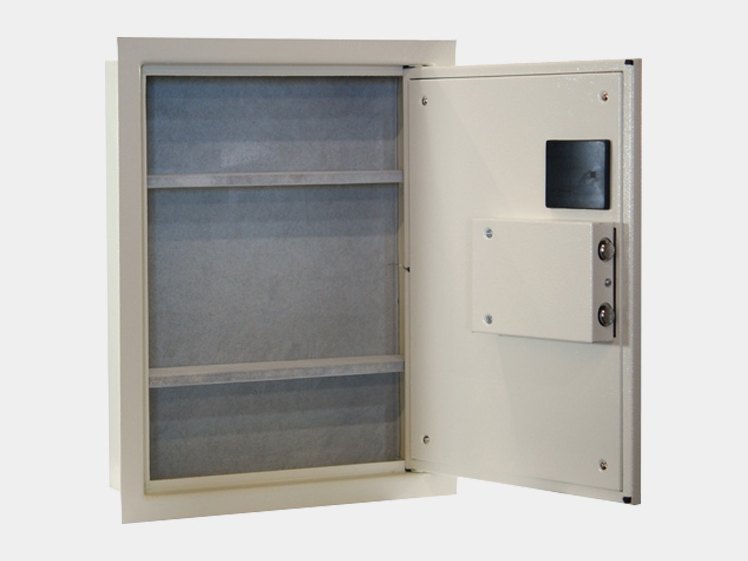
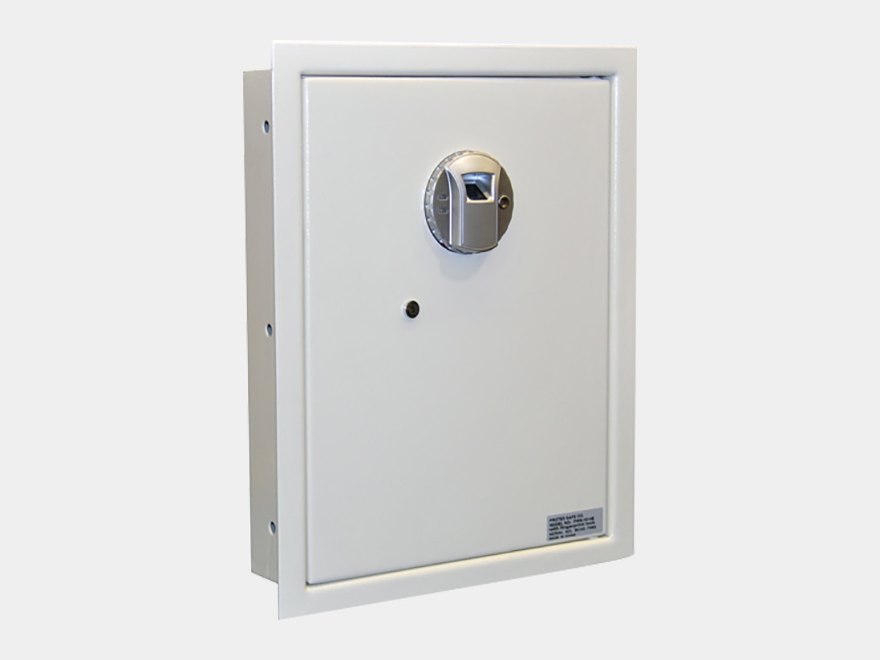
- A recessed wall safe (18 inches high by 14 inches wide) with a glass fingerprint scanner on the door, a wake-up button and an LED indicator.
- The power override hole is on the front below the scanner, and the emergency key lock is under a chrome keyhole cap below and to the left of the scanner.
- The red setup button is inside the safe, on the back of the door. The battery box (4 AA) is in the back of the door.
- Protex’s sheet is the FW-1814Z User Manual (Rev. 06.12).
How to open it
- Make sure the safe is upright (not lying down).
- Press the wake-up button and place your finger on the glass scanner.
- Hold it until the LED turns green and you hear a long beep.
- The door slowly springs open.
To close and lock
- Push and hold the door shut.
- Press the wake-up button and wait until the safe is locked. You will hear the bolts extend.
- First time: put the 4 AA batteries in the power override box, plug it into the left hole below the scanner, and open the safe with the wake-up button and a finger. Then put 4 AA batteries in the black battery box in the back of the door. The safe opens with any finger if no fingerprint has been enrolled yet.
How to change the battery
The safe uses four AA alkaline batteries (we recommend Procell) in the black battery box in the back of the door. If they die, use the power override battery box from the outside. Protex’s sheet does not give a low battery message, so change the batteries once a year.
- Open the safe (use the override box if the batteries are dead).
- Open the black battery box in the back of the door and put in 4 new alkaline AA batteries.
- Close it and test your fingerprint with the door open.
If the batteries die: power override battery box
- Slide the cover on the battery box and put in 4 AA batteries.
- Plug in the jack in the power override hole in the scanner.
- Open the safe with your fingerprint, then replace the batteries inside.
- Never lock the power override box inside the safe.
How to enroll and delete fingerprints
Enroll with the safe OPEN.
Open the safe first (step 1). You can enroll up to 30 different fingerprints.
Enroll a finger
- Open the safe.
- Press the red setup button inside the safe, on the back of the door. The scanner flashes red.
- While it flashes red, immediately place your finger (Protex suggests the index finger) flat on the fingerprint scanner.
- Wait until scanning is done and the green LED goes on twice with two beeps.
- Take your finger off. The fingerprint is enrolled.
- To add more fingerprints, repeat these steps.
Delete fingerprints (this deletes ALL of them)
- Open the safe and leave the door open.
- Take one of the batteries out of the battery box inside the safe.
- Press and hold the wake-up button for 3 seconds and release it.
- Press and hold the red setup button, and while holding it, put the battery back in the battery box.
- Keep holding the red setup button until the LED flashes green twice with 2 beeps.
- Let go. The safe is back to factory settings, and now any fingerprint can open the safe.
- You cannot delete individual users. You must delete all users and enroll again straight away.
Lights and beeps
| What you see and hear | What it means |
|---|---|
| LED green and a long beep | The fingerprint was accepted. The door springs open. |
| Scanner flashes red | The safe is ready to enroll a fingerprint (setup button pressed). |
| Green LED twice and two beeps | A fingerprint was enrolled, or the safe was reset to factory settings. |
Scan problems
Protex’s FW-1814Z sheet does not describe a lockout. If the scanner keeps refusing your finger, use the emergency key and call us.
Opening with the emergency key
Use the key only if the scanner is not reading your fingerprint for some reason. Do not use it to open the safe on a regular basis.
- Gently unscrew the chrome keyhole cap located below and to the left of the scanner.
- Put the key in with the notch pointing upwards and turn it counter-clockwise to open the safe.
- Never lock the keys inside the safe. Keep them outside the safe in a hidden place.
If it still won’t open
The scanner does not light up
Press the wake-up button first. If nothing happens, the batteries are probably dead. Use the power override box in the hole below the scanner, then change the batteries.
My finger is not accepted
Wake the scanner, then place the enrolled finger flat on the glass until the LED turns green. Enroll a second finger as a backup (up to 30 fingerprints). If it keeps failing, use the emergency key.
Anyone can open it
If no fingerprint is enrolled (or all were deleted), any finger opens the safe. Enroll your finger right away.
Download the full manufacturer instructions
This page is a quick-reference summary. For every feature and diagram, use the official manual for your model:
- Protex FW-1814Z Fingerprint Wall Safe User Manual (PDF, Rev. 06.12)A Protex Safe Co. manual, from Protex’s Manual page.
- Protex Safe: Wall safesProtex’s product page.
Need a hand?
Still stuck? We can help.
Having a hard time getting into your safe? Our technicians are trained to open malfunctioning safes professionally, so your valuables can still be safely secured. Call us or stop by.
Steve’s Lock, Safe and Alarm · 3401 N. Sepulveda Blvd, Manhattan Beach, CA 90266
More lock guides
About this guide. This is an independent guide from Steve’s Lock, Safe and Alarm, a safe and lock dealer. Brand and model names belong to their owners and are used only to help you identify your lock. We are not affiliated with the manufacturers. These steps summarize the manufacturers’ own instructions; your lock may be a different version, so if anything here does not match what your lock does, follow your manual or call us. Always change codes with the safe door open, and test the new code several times before you close the door.
Steps last checked against the manufacturer documents on October 19, 2026.