
Safe lock help · AMSEC
Safe lock troubleshooting › AMSEC › ESLAudit and ESLAudit II (screen and audit trail)
The AMSEC ESLAudit and ESLAudit II are access-control safe locks used on cash-handling and drop safes. They have a blue keypad with a 4-line backlit screen, four softkeys, and a reader for an electronic key. Each user has a PIN and/or a key, and the lock keeps an audit trail of who opened the safe and when. This guide covers how to log in and open the safe, change your PIN, the batteries, the time delay, and how to download the audit.
- How to open
- Battery
- Change the code
- Screens
- Lockout
- Time delay and time lock
- How to download the audit
- Troubleshooting
- Manuals
Want the whole manual? Jump to the manufacturer download links.
Is this your lock?
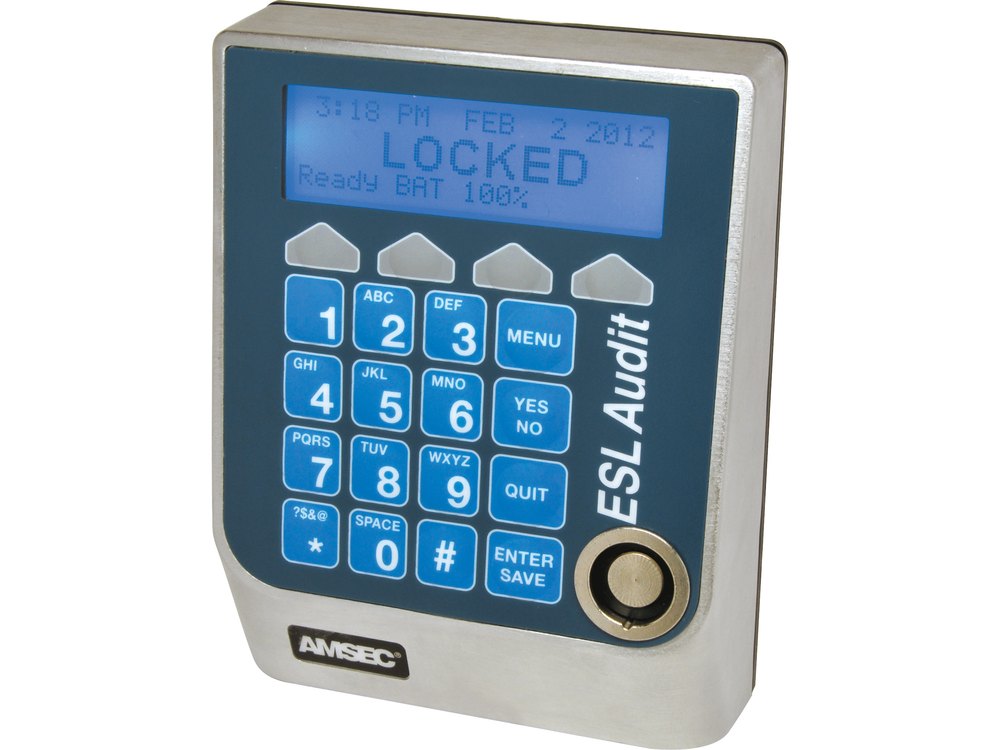
- A blue keypad with a 4-line backlit screen (it reads LOCKED when the safe is locked), four softkeys under the screen, number keys, MENU, YES/NO, QUIT and ENTER/SAVE keys, and a round key reader at the bottom. The name ESLAudit (or ESL Audit II) is on the side.
- The keypad runs a swing bolt or toggle lock on one or two doors. AMSEC sells it on its cash-management and drop safes.
- It holds up to 40 users, each with their own PIN and/or AMSEC e-key. The ESLAudit manual says it keeps 2,000 audit records; the ESLAudit II sheet says 5,000.
- Some settings, such as the user list and the time-lock open windows, are also set on a PC with AMSEC’s ESLConfig program.
How to log in and open it
What you do at the keypad depends on how your user was set up: PIN and key, PIN only, or key only. If the screen is dark, press any key to wake it.
- Log in. With PIN and key: present the key to the reader, enter your PIN, then press ENTER/SAVE. With PIN only: enter your PIN and press ENTER/SAVE. With key only (not on UL-listed versions): present the key.
- Press the left softkey: Open1 for door 1, or Open2 for door 2.
- After you hear a click, open the door within 4 seconds.
If a time delay is set
- Log in and press Open1 or Open2.
- Wait for the time delay counter to reach the preset delay.
- Log in again.
- After the click, open the door within 4 seconds.
- Press MENU to get back to the main menu, and QUIT to go back one screen.
- If the safe has dual control turned on, two users must log in to open that door.
How to change the battery
The ESLAudit manual says the controller holds two 9-volt batteries (we recommend Procell alkaline) in a tray at the bottom of the controller. (AMSEC’s ESLAudit II sheet lists a 9-volt battery with optional AC power: check the tray on yours.) The LOCKED screen shows the percentage of battery life left.
- Open the safe so you are not locked out while you work.
- The battery compartment is on the bottom of the controller.
- Pinch the release catches toward the center on either side to release the tray.
- Replace the 9-volt batteries, put the tray back, and check the LOCKED screen for a full battery percentage.
- Log in and open the safe with the door open a couple of times before you close it.
- To see the battery percentage, press any key when the lock is asleep. If the controller is awake, press QUIT until the LOCKED screen appears.
- The user data and settings are kept inside the safe, and AMSEC advises administrators to back up the settings to a USB flash drive after each change.
How to change your PIN
New users
A new user is asked to enter a new PIN the first time they log in. PINs that another user already has, or that are too simple, are not accepted.
- Log in.
- Press 3 (Admin).
- Press 1 (PIN chg).
- Enter your new PIN and press OK.
- Enter the new PIN again and press OK.
- Adding, editing, deleting, and disabling users is done by a user with a managing level, from 3 (Admin) then 2 (Users). Ask your safe administrator, or call us.
- You cannot reset the lock or recover a forgotten PIN from the keypad. Call us if a user is locked out.
What the screens show
| Screen / softkey | What it means |
|---|---|
| LOCKED (with a battery percentage) | The safe is locked and the keypad is ready for a login. |
| Open1 / Open2 (left softkeys) | Opens door 1 or door 2 after you log in. |
| Time delay counter | The time delay is running. Wait for it to finish, then log in again. |
| I-Lock (1 on the main menu) | Immediate Lock: locks the safe out for the hours you enter (up to 144), when time lock is set up. |
| 2 (Audit) on the main menu | Downloads the audit trail to a USB flash drive. |
| 3 (Admin) on the main menu | PIN change, users, and the door access settings. |
Wrong PINs
The ESLAudit has a wrong try count with a penalty lockout. AMSEC’s ESLAudit manual does not give the number of tries or the lockout time, so stop after a couple of wrong PINs and call your safe administrator or call us.
Time delay and time lock
The time delay makes a user wait a set number of minutes (1 to 99) between pressing Open and being allowed to open the door. After the delay there is an open window (also 1 to 99 minutes). If you wait longer than the open window, you have to start again. Time lock limits when the safe can be opened (1 to 6 open windows a day) and a holiday lockout schedule can block whole days. These are set by an administrator, and the time-lock windows are programmed with the PC program.
How to download the audit
- Log in.
- Press 2 (Audit) on the main menu.
- Plug a USB flash drive into the USB connector on the bottom of the controller.
- Press the OK softkey on the right. When the download finishes, take the flash drive out.
- The audit file can be read on a PC with AMSEC’s ESLDat software.
If it still won’t open
The screen stays dark
Press any key. If nothing happens, replace the 9-volt batteries (see above). Some installations also run on AC power: check that the adapter is plugged in.
I pressed Open but the door will not open
Open the door within 4 seconds of the click. If a time delay is set, wait for the counter to finish and log in again, then open the door.
A user cannot log in
Check how their login was set up (PIN and key, PIN only, or key only). A managing user can edit the login, or disable and delete the user. If you are not sure, call us.
Download the full manufacturer instructions
This page is a quick-reference summary. For every feature and diagram, use the official manual for your model:
- AMSEC ESLAudit Operating Instructions (PDF)American Security Products, Rev B. Hosted by AMSEC.
- AMSEC ESLAudit II product sheet (PDF)Features and options. Hosted by AMSEC.
- AMSEC ESLAudit II product pageAMSEC’s page for the ESLAudit II.
- AMSEC operating instructions libraryAll AMSEC lock manuals.
Need a hand?
Still stuck? We can help.
Having a hard time getting into your safe? Our technicians are trained to open malfunctioning safes professionally, so your valuables can still be safely secured. Call us or stop by.
Steve’s Lock, Safe and Alarm · 3401 N. Sepulveda Blvd, Manhattan Beach, CA 90266
More lock guides
About this guide. This is an independent guide from Steve’s Lock, Safe and Alarm, a safe and lock dealer. Brand and model names belong to their owners and are used only to help you identify your lock. We are not affiliated with the manufacturers. These steps summarize the manufacturers’ own instructions; your lock may be a different version, so if anything here does not match what your lock does, follow your manual or call us. Always change codes with the safe door open, and test the new code several times before you close the door.
Steps last checked against the manufacturer documents on October 15, 2026.