
Safe lock help · dormakaba
Safe lock troubleshooting › dormakaba › Axessor Apexx keypad (deadbolt, swing bolt, slam bolt)
The dormakaba Axessor Apexx is a modern keypad lock system for commercial safes and vaults. The keypad has a screen with menu icons, number keys, a Back key and a green Enter key. You sign in with a User ID and a PIN, and one keypad can control up to 16 locks (deadbolt, swing bolt, slam bolt or latch bolt). This guide covers how to unlock, change your PIN, replace the 4 AA batteries, and what the penalty after wrong tries means.
Want the whole manual? Jump to the manufacturer download links.
Is this your lock?
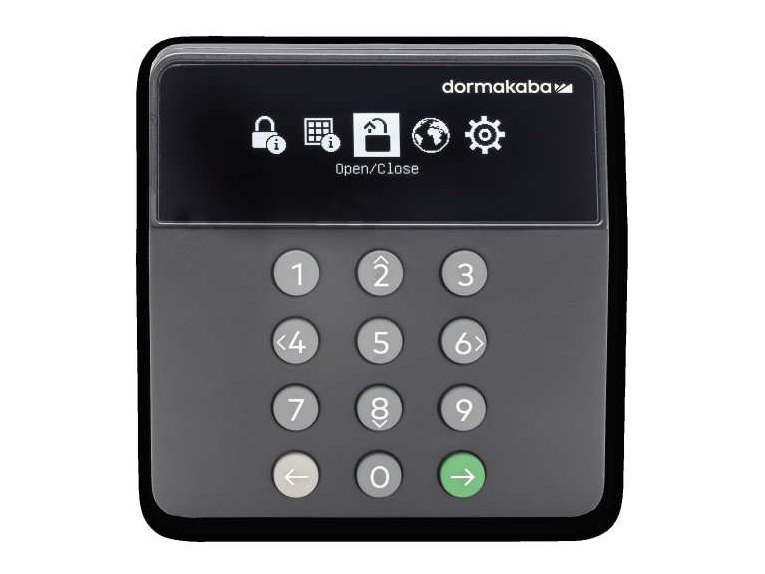
- A rectangular dark keypad with the dormakaba name, a monochrome screen showing menu icons (a padlock for Open/Close, a keypad, a globe and a gear), the numbers 0 to 9, a Back key (left arrow) and a green Enter key (right arrow).
- The keys 2, 4, 6 and 8 double as arrow keys in the menus.
- It is wired to one or more locks (deadbolt, slam bolt, swing bolt or latch bolt). Larger systems add an eBox for network connection and power.
- It is not the older Axessor keypad (3 AA batteries, DENIED and WAIT messages): see the Axessor guide for that one.
How to unlock it
- Wake the keypad: press Enter. The Main Menu shows.
- Highlight the Unlock icon (the padlock) and press Enter.
- A list of locks shows with the status of each. Highlight the lock you want and press Enter.
- ENTER ID: type your User ID and press Enter.
- ENTER PIN: type your PIN and press Enter.
- If the safe needs two people (dual mode), the second person repeats the ID and PIN steps.
- If it worked, the lock unlocks and the icon changes. Press Back when you are done to return to the main menu.
- The same steps lock the lock again if it is open.
- If a time delay is set, the screen shows the delay. When it ends, a confirmation window starts: press Enter, then enter the ID and PIN again to open. You can press Enter during the delay to cancel it (the delay then starts over next time).
- If a time lock is active (weekly or holiday), the screen shows how long until the lock can be opened.
- The keypad goes to sleep after 15 seconds of no key presses in the main menu (30 seconds in the Advanced Menu).
How to change the battery
The keypad is powered by four AA batteries (we recommend Procell alkaline) in a holder built into the keypad faceplate. A battery icon on the status screen shows the level (it shows a line-power symbol on AC power). A system with more than two locks needs an AC adapter or an eBox for power. If batteries are the backup power, replace them on a regular schedule and after any power outage.
- If the set screw at the bottom of the keypad has been tightened, loosen it with the small .050" hex driver it came with.
- Press the spring-loaded button on the bottom of the keypad and, while pressing it, pull the faceplate away from the baseplate. The faceplate hangs on two hinges at the top. Lift the bottom up, let it swing up on the hinges, then lift it away.
- Put the four AA batteries into the holder in the faceplate, one at a time, following the + and – marks.
- Hook the faceplate’s two hinges back into the slots at the top, swing it down, and press firmly until you hear a loud snap.
- Tighten the set screw clockwise so the faceplate cannot be lifted by hand.
- Do not remove any of the screws inside the keypad. It can damage the keypad and void the warranty.
- Hold the keypad tightly when you take the faceplate off so you do not drop it.
How to change your PIN
- From the Main Menu, highlight Advanced Menu and press Enter.
- ENTER ID and ENTER PIN: type your own ID and PIN and press Enter each time.
- Highlight Change PIN and press Enter.
- Enter New PIN, then press Enter.
- Confirm New PIN by typing it again and press Enter.
- Change PIN Success shows. Press Enter to dismiss it.
- Do not use an easy PIN such as 1,2,3,4,5,6 or one based on dates or addresses.
- Adding and deleting users, setting time delays and locks, and commissioning new locks are done by an Administrator (or Manager). In a networked system, the administrator does most of it in the Apexx software.
- If you cannot sign in or have forgotten your PIN, ask your administrator. We cannot recover it for you.
The menu icons
| Main Menu icon | What it does |
|---|---|
| Lock Information | Shows each lock’s number, how many times it has opened, and its type (deadbolt, slam bolt, swing bolt or latch bolt). |
| System Information | Shows the time and date, the battery level, the battery voltage, the number of locks, and the keypad’s version. |
| Unlock | Locks or unlocks a lock you are allowed to use. |
| Language | Sets the language on the keypad screen. |
| Advanced Menu | PIN change and the administrator functions (users, time, audit, time delay, and more). |
Wrong-try penalty
If a user ID and PIN are entered wrongly 5 times in a row, the keypad shows Invalid Entry Limit with a timer, and no lock on that keypad will open for 5 minutes. The keypad menus are locked too. After that, each further wrong entry starts another 5-minute penalty, and after the third 5-minute penalty, the next wrong entry starts a 20-minute penalty. The penalty does not expire: it is only cleared when a lock is successfully opened. If the power is cut and restored during a penalty, it picks up with the same time left.
If it still won’t open
The screen is dark
Press Enter to wake it. If nothing happens, replace the four AA batteries (see above), or check the AC power.
It says Invalid Entry Limit
You are in the wrong-try penalty. Wait out the timer without trying again, then enter your own ID and PIN carefully.
I am not allowed to open a particular lock
Each user is assigned to specific locks. A new lock is not given to existing managers and users automatically: your administrator has to add it to your access.
I need to add a lock or a user
That is an administrator task. We can help if your administrator’s access is not working: call us.
Download the full manufacturer instructions
This page is a quick-reference summary. For every feature and diagram, use the official manual for your model:
- Axessor Apexx Keypad User Guide (PDF)dormakaba document 802.0622, Rev A, 02/2024. dormakaba support site.
- Axessor Apexx Keypad Installation Guide (PDF)Includes the keypad battery access steps. dormakaba support site.
- Axessor Apexx Keypad Quick Start Guide (PDF)dormakaba support site.
- dormakaba Axessor Apexx support articlesTemplates, instructions, software and release notes.
Need a hand?
Still stuck? We can help.
Having a hard time getting into your safe? Our technicians are trained to open malfunctioning safes professionally, so your valuables can still be safely secured. Call us or stop by.
Steve’s Lock, Safe and Alarm · 3401 N. Sepulveda Blvd, Manhattan Beach, CA 90266
More lock guides
About this guide. This is an independent guide from Steve’s Lock, Safe and Alarm, a safe and lock dealer. Brand and model names belong to their owners and are used only to help you identify your lock. We are not affiliated with the manufacturers. These steps summarize the manufacturers’ own instructions; your lock may be a different version, so if anything here does not match what your lock does, follow your manual or call us. Always change codes with the safe door open, and test the new code several times before you close the door.
Steps last checked against the manufacturer documents on October 15, 2026.