
Safe lock help · Protex
Safe lock troubleshooting › Protex › SCE-series LCD safe (door key plus code, calendar display)
The Protex SCE series safes have an oval electronic lock with an LCD that shows a calendar when it is not in use, a * multi-function key, a # key, an emergency override lock with a cover, an external power jack, and a separate door key lock. You open the safe with the door key and your code. This guide covers how to open and close it, set a code, set the calendar, replace the four AA batteries, and use the alarm and the emergency key.
- How to open
- Battery
- Set a code and the calendar
- Screen messages
- Lockout
- Alarm function
- Opening with the emergency key
- Troubleshooting
- Manuals
Want the whole manual? Jump to the manufacturer download links.
Is this your lock?
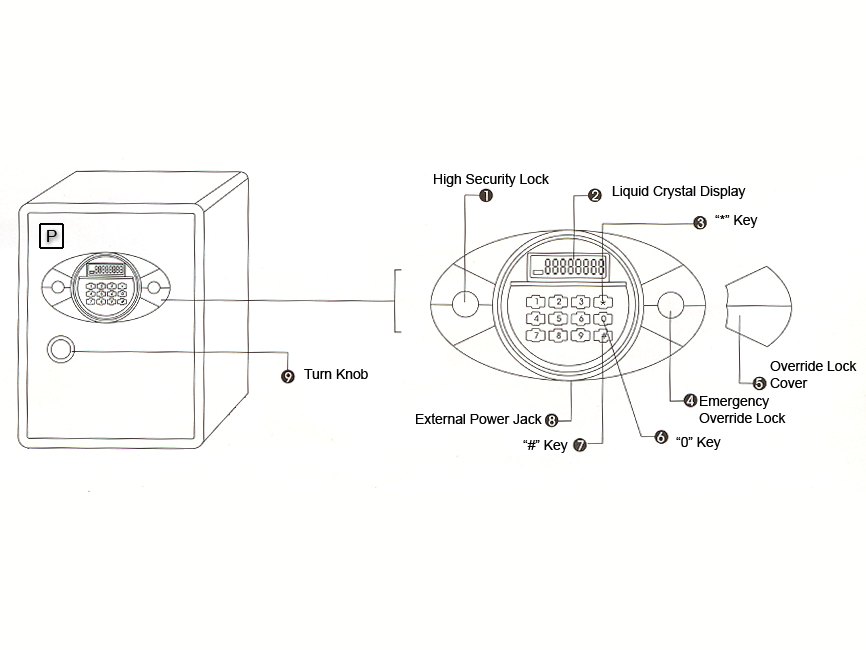
- An oval electronic lock with an LCD that shows a calendar (day, date, time and battery condition) when it is not in use, over a keypad with *, 0 and #.
- A separate door key lock and an emergency override lock under a cover that slides to the right. A turn knob is not included on all models.
- It uses four AA batteries (6 volts) in a battery box at the back of the door. The green programming push-button is on the back cover of the door.
- Protex’s manual is the SCE-series LCD user’s manual (Rev. 031506).
How to open it
- Insert the flat door key into the door lock.
- Press #.
- Enter the correct code and press #.
- Turn the key clockwise, and if there is a knob, turn it clockwise as well, to open the door. (On models without a knob the door key opens the safe.)
To close and lock
- Turn the door key counter-clockwise and take it out of the keyway.
- If there is a knob, turn it counter-clockwise as well.
- Hide your code: press #, then *, followed by the correct code. No numbers appear on the display.
- Keep the manual, the emergency key and the extra door key in a safe place, but not in the safe.
How to change the battery
The four AA batteries (6 volts) go in the battery box at the back of the door (we recommend Procell). As the voltage drops, a “LO-BATT” warning appears on the display and it is time to install fresh batteries. When new batteries go in, the display scans twice and then shows GOOD.
- Open the safe (use the external power supply below if the batteries are too low).
- Put 4 fresh AA batteries in the battery box at the back of the door.
- The display scans twice and shows GOOD.
If the batteries are too low: external power supply
- Put 4 fresh AA batteries in the external power supply.
- Plug it into the jack below the keypad.
- Open the safe in the usual way, then replace the batteries inside.
- Always start with fresh batteries in the external power supply.
How to set a code and the calendar
Set the code with the door OPEN.
If entering the new code takes more than 10 seconds, the display goes dark (time out) and you must start again.
Set or change a code (1 to 8 digits)
- With the door open, press the green programming push-button once. It is on the back cover of the door.
- Enter a code of any length from 1 to 8 digits and press #.
- The LCD shows IN. Your code is ready to use.
- To change a code, follow the same steps.
Set the calendar
- Press *.
- Enter 2 digits for the year, 2 for the month and 2 for the day, for example 06-03-14.
- Enter the day of the week, 1 to 7 (1 is Sunday, 2 is Monday, and so on).
- Enter the time, for example 13:05 for 1:05 p.m.
Screen messages
| What you see | What it means |
|---|---|
| Day, date, time and battery condition | The lock is idle. |
| Scanning twice, then GOOD | New batteries were installed. |
| IN | A new code was set. |
| LO-BATT | The batteries are low. Install fresh ones. |
| ALMON | The motion alarm is on (you pressed 0). |
Wrong codes
Three wrong codes in a row cause an audible alarm. It is cleared by entering the correct code and #.
Alarm function
Three wrong codes in a row sound an audible alarm. You can reset it by entering the correct code followed by #.
For optional extra security, press the 0 key. The display shows ALMON and an alarm sounds if someone tries to shake, tilt or strike the safe.
Opening with the emergency key
If the safe cannot be opened with the code and the external power supply, use the emergency key together with the door key:
- Slide the override lock cover to the right to show the lock for the emergency key.
- Put the tubular emergency key in and turn it clockwise to override the electronic lock.
- Put the flat door key into the door lock and turn it clockwise. The safe is unlocked.
- Turn the knob clockwise to open the safe (if it has one).
If it still won’t open
The display is dark
The batteries are dead or you took more than 10 seconds while entering a code. Press the keys again. If the display stays dark, use the external power supply (4 AA) in the jack below the keypad, or the emergency key with the door key.
The alarm is sounding
Enter the correct code and press #.
I cannot get in
Please do not keep guessing: three wrong codes set off the alarm. Use the emergency key and the door key, or call us.
Download the full manufacturer instructions
This page is a quick-reference summary. For every feature and diagram, use the official manual for your model:
- Protex SCE series LCD user’s manual (PDF, Rev. 031506)A Protex Safe Co. manual, from Protex’s Manual page.
- Protex Safe: Manual pageProtex’s own page of user manuals.
Need a hand?
Still stuck? We can help.
Having a hard time getting into your safe? Our technicians are trained to open malfunctioning safes professionally, so your valuables can still be safely secured. Call us or stop by.
Steve’s Lock, Safe and Alarm · 3401 N. Sepulveda Blvd, Manhattan Beach, CA 90266
More lock guides
About this guide. This is an independent guide from Steve’s Lock, Safe and Alarm, a safe and lock dealer. Brand and model names belong to their owners and are used only to help you identify your lock. We are not affiliated with the manufacturers. These steps summarize the manufacturers’ own instructions; your lock may be a different version, so if anything here does not match what your lock does, follow your manual or call us. Always change codes with the safe door open, and test the new code several times before you close the door.
Steps last checked against the manufacturer documents on October 19, 2026.