
Safe lock help · Tecnosicurezza
Safe lock troubleshooting › Tecnosicurezza › TechMaster and MiniTech LCD keypads
The Tecnosicurezza TechMaster and MiniTech are keypads with a small LCD screen that work with a lock body inside the door. You wake the keypad, enter your ID number and code (for example 02-020202), and the screen tells you what is happening: TIME DELAY, OPEN WINDOW, OPEN, WRONG CODE, PENALTY, LOW BATTERY. Both can use Dallas keys (the MiniTech also reads fingerprints), a time delay and dual control. The TechMaster has up to 89 users and a Class C version with a tamper alarm. The MiniTech has users 02 to 49 and override users 50 to 59. This guide covers how to open, how to change your code, the screen messages, and the battery.
Want the whole manual? Jump to the manufacturer download links.
Is this your lock?
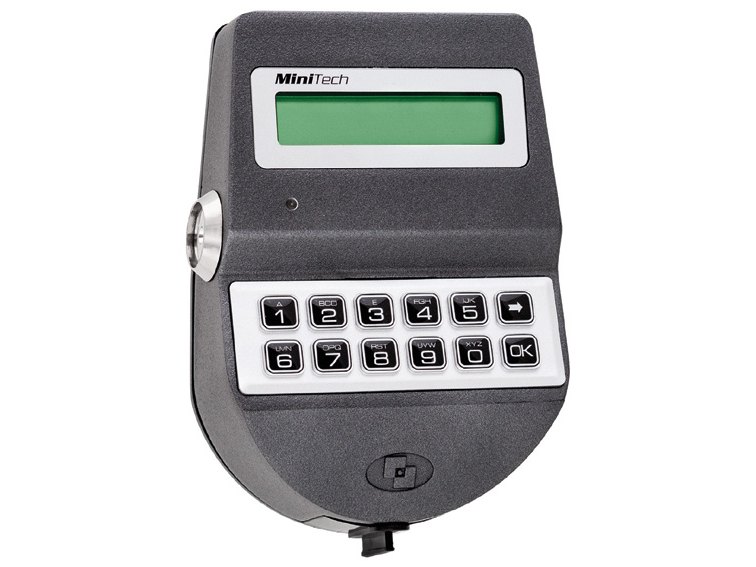
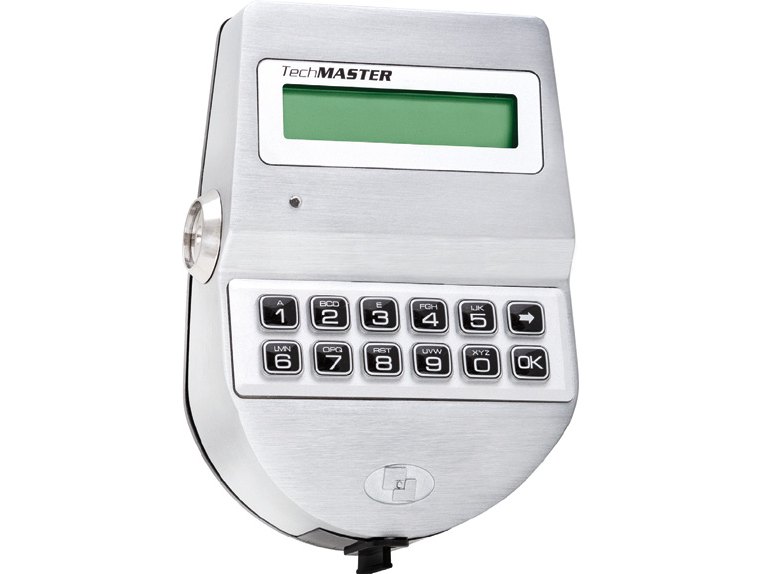
- A keypad with an LCD screen that lights when you press a key, keys 0 to 9, an arrow key and an OK key, and a Dallas key reader opening on the keypad.
- TechMaster: users 02 to 90, a Manager and a Master, 15,000 logged events. Some are Class C locks with 8-digit codes, scramble mode and a tamper alarm.
- MiniTech: Manager ID 01, users 02 to 49, override users 50 to 59, 11,000 logged events, and an optional fingerprint reader.
- Every user opens with an ID plus a 6-digit code. A user can also be set up with a Dallas key (or a fingerprint on the MiniTech).
- Pulse PRO and Pulse Next keypads have no screen: see their guides. The Touch Manager reads only a Dallas key.
How to open it
A user without a time delay
- Press any button to wake the keypad. The screen shows ENTER CODE and a code entry line.
- Enter your ID and code. If you have a Dallas key (or fingerprint), insert it in the reader as well.
- The screen shows OPEN. Open the lock within 3 seconds.
With a time delay
- Wake the keypad and enter your ID and code. The screen shows TIME DELAY (or PLEASE WAIT) and a countdown.
- When the countdown ends the screen shows OPEN WINDOW and a second countdown.
- Press the arrow key. The screen shows ENTER CODE again.
- Enter your ID and code again. The screen shows OPEN: open the lock within 3 seconds.
- To stop a countdown, press the arrow key and confirm with OK at the STOP DELAY COUNTING? question.
Dual control (two people)
- Enter the first user’s ID and code. The screen shows 2° USER (or ENTER 2° CODE).
- Enter the second user’s ID and code. The screen shows OPEN: open the lock within 3 seconds.
TechMaster Manager
- Wake the keypad and press the arrow key once for the Manager code (twice for the Override Manager code). The screen shows MANAGER CODE.
- Enter the Manager code (and Dallas key if set up). The screen shows OPEN.
- The screen switches itself off after 30 seconds without a key press. If more than one lock is on the keypad, it first shows SELECT LOCK: enter the lock number.
- On a motorized lock the motor moves the bolt for you and it stays open for about 8 seconds before it closes again. The MiniTech then beeps twice to confirm the bolt is secure.
- If a code or key is wrong the screen shows WRONG CODE. On a MiniTech with fingerprints, a badly read finger gives a single flat beep.
- Default codes are printed on Tecnosicurezza’s sheet. We are not printing them here. Change them before you use the lock.
Battery
The keypad runs on a 9-volt alkaline battery in a compartment below the keypad, or on a battery box (six 1.5-volt alkaline cells) or power adapter if the safe was wired that way. A long beep and the message LOW BATTERY mean the battery must be replaced right away. Tecnosicurezza’s sheets name Duracell; we recommend Procell alkaline. The sheets do not show how to open the compartment, so we are not guessing: call us.
- TechMaster Class C: opening the battery compartment or taking the keypad off the door sets off the ANTI_TAMPER ALARM. The screen asks you to enter a valid code to unblock the keypad. Do not open the compartment unless you have to.
- Change the battery with the safe door open and test your code afterward.
How to change your code
Do this with the safe door OPEN.
Test the new code several times before you close the door. After you close it, check that the handle cannot be turned to the open position.
MiniTech
- Wake the keypad. Press and hold 0. The screen shows ENTER OLD CODE.
- Enter the old code (and Dallas key or fingerprint if set up). The screen shows ENTER NEW CODE.
- Enter the new code. The screen shows CONFIRM CODE.
- Enter the new code again.
TechMaster (standard and override users)
- Wake the keypad. Press OK, then press the arrow key until the screen shows CHANGE CODE. (Or press and hold 0 until it does.)
- Press OK, then OK again at CHANGE USER CODE. The screen shows ENTER OLD CODE.
- Enter the old code (and Dallas key if set up). Then enter the new code, then confirm it at CONFIRM CODE.
- On the TechMaster Manager’s code, choose CHANGE MANAGER CODE in the same menu instead.
- On a MiniTech, the Manager (ID 01) adds, disables or deletes users from USERS MANAGEMENT: wake the keypad, hold 1, enter the Manager code, then pick the user. A check mark shows an installed user, a blank a deleted one and an X a disabled one.
- The setup, the time and date, the lock numbers and other options are in Tecnosicurezza’s full manual. Some options only work if they were turned on with Tecnosicurezza’s setup software. If you need one, call us.
Screen messages and beeps
| What you see / hear | What it means |
|---|---|
| ENTER CODE | The keypad is awake and waiting for your ID and code. |
| SELECT LOCK | More than one lock is on the keypad. Enter the lock number. |
| TIME DELAY (or PLEASE WAIT) and a countdown | The time delay is running. |
| OPEN WINDOW and a countdown | The delay has ended. Press the arrow key and enter your code again. |
| OPEN | The code was accepted. Open the lock within 3 seconds. |
| WRONG CODE | The code, key or fingerprint was not accepted. |
| PENALTY | The lock is in its 4-minute penalty. Do not press keys. |
| A long beep and LOW BATTERY | The battery is low. Replace it right away. |
| WRONG TIME/DATE VALUES! | The clock needs to be set again. This appears on locks that use one-time codes. Call us. |
| ANTI_TAMPER ALARM (TechMaster Class C) | The keypad was moved or its battery compartment was opened. Enter a valid code to unblock it. |
Wrong-code lockout
Four wrong codes in a row start a 4-minute penalty and the screen shows PENALTY. No operation is allowed until it ends. On a TechMaster Class C lock the penalty is at least 5 minutes. On a MiniTech, four wrong Dallas keys or fingerprints in a row do not start a penalty.
If it still won’t open
The screen is blank
Press any key to wake it. It switches off after 30 seconds. If it still stays blank, the battery may be dead: call us.
It shows LOW BATTERY
Replace the 9-volt battery right away. The lock keeps its users and settings. If you cannot get at the battery, call us.
It shows PENALTY
Four wrong codes in a row start the penalty. Wait it out (4 minutes, 5 on Class C) without pressing keys, then enter your ID and code.
It shows ANTI_TAMPER ALARM
This is the Class C tamper alarm. Enter a valid code to unblock the keypad. If you did not move the keypad or open the battery compartment, call us.
I lost the Manager or Master code
Please do not keep guessing: four wrong codes start a penalty. Call us.
Download the full manufacturer instructions
This page is a quick-reference summary. For every feature and diagram, use the official manual for your model:
- TechMaster User Instructions, English (PDF, IU_TechMaster_T9531-T9533_14, 03/23/2026)Tecnosicurezza’s user instructions. Hosted by Tecnosicurezza.
- MiniTech User Instructions, English (PDF, IU_MiniTech_T9520_09, 05/25/2026)Tecnosicurezza’s user instructions. Hosted by Tecnosicurezza.
- Tecnosicurezza: downloads (English)Installation instructions, setup and audit software guides.
Need a hand?
Still stuck? We can help.
Having a hard time getting into your safe? Our technicians are trained to open malfunctioning safes professionally, so your valuables can still be safely secured. Call us or stop by.
Steve’s Lock, Safe and Alarm · 3401 N. Sepulveda Blvd, Manhattan Beach, CA 90266
More lock guides
About this guide. This is an independent guide from Steve’s Lock, Safe and Alarm, a safe and lock dealer. Brand and model names belong to their owners and are used only to help you identify your lock. We are not affiliated with the manufacturers. These steps summarize the manufacturers’ own instructions; your lock may be a different version, so if anything here does not match what your lock does, follow your manual or call us. Always change codes with the safe door open, and test the new code several times before you close the door.
Steps last checked against the manufacturer documents on October 20, 2026.