
Safe lock help · Sargent & Greenleaf
Safe lock troubleshooting › Sargent & Greenleaf › Biometric keypad (fingerprint and code, for the 6120, 6123 and Z02 locks)
The Sargent & Greenleaf Biometric Keypad is a round keypad with a START button, a two-line LCD, a number pad with a * and # (shown as arrow keys on the bottom row) and a fingerprint sensor at the top. It can be added to S&G 6120, 6123 and Z02 locks and opens the lock with a fingerprint, a code, or both. It takes two 9-volt alkaline batteries in a drawer under the keypad. This guide covers how to open it, enroll a fingerprint, replace the batteries, and turn the backlight on or off.
Want the whole manual? Jump to the manufacturer download links.
Is this your lock?
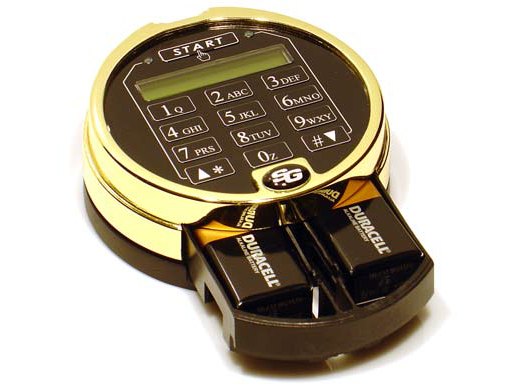
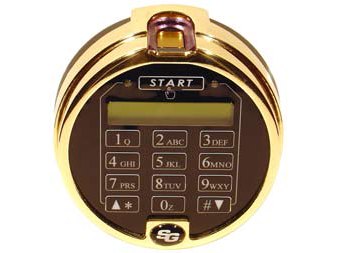
- A round keypad with the word START above a two-line LCD, a number pad with arrow keys on the bottom row, and a fingerprint sensor at the top (S&G’s picture shows a gold-colored model).
- It works with S&G 6120, 6123 and Z02 locks (S&G says Z02 means models 2002-200 and 2002-300). Setup needs both the lock and keypad at their factory settings.
- S&G says the two 9-volt alkaline batteries power both the keypad and the lock and last about 1,500 openings and closings (fewer with the backlight on).
- The silicon-based active capacitive fingerprint reader is designed to reject the tricks used on optical readers.
How to open the lock
- Press START (just above the LCD). The LCD wakes up.
- When the green LED lights up, the keypad is waiting for you. Place your enrolled finger on the reader until the LED goes off, or enter your 6-digit PIN code and #.
- Do not put pressure on the safe handle until the LCD says the lock is open. The lock stays unlocked for about 6 seconds and re-locks when the door is closed and the handle turned to locked.
Fingerprint and PIN mode
- Press START and place your enrolled finger on the reader.
- The LCD asks for the 6-digit PIN tied to that fingerprint. Enter it and #.
With a time delay
- After your fingerprint or PIN, the LCD shows a time delay countdown. When it reaches zero, the opening window screen appears and counts down.
- Enter your fingerprint or PIN again during the opening window. If you miss it, the lock powers down: press START and begin again.
Dual control (6123 and Z02 locks)
- Two different people (or fingerprints) must enter a fingerprint and/or PIN within 60 seconds of each other. In fingerprint and PIN mode each person gives both.
- With a time delay, any valid user starts the countdown and two different users enter their print or PIN in the opening window.
- Each key press makes the red LED blink and the keypad beep. If you press a key and do not see or hear it, you probably did not press it fully: press it again.
- If you do not press anything for about 15 seconds, the keypad goes to sleep to save power. A pause of more than 10 seconds while entering a code also powers it down: press START and start again.
- Supervisor/subordinate mode: the master and supervisor codes do not open the lock. They switch it on and off for the user codes.
- Time delay override (6123 and Z02): a TDO fingerprint or PIN can open the lock without waiting for the delay.
- Clean the fingerprint sensor with a clean, dry cloth. It works best with no debris or fingerprint grease on it.
How to change the battery
The keypad takes two 9-volt alkaline batteries (we recommend Procell) in a drawer under the keypad that you can open from outside the safe. No data is lost during a battery change or if power is lost for a long time. When the batteries are low, the lock gives a lower-pitched tone when you press a key (not when you use a fingerprint). If the keypad makes no sound or the LCD shows nothing, the batteries are dead.
- Under the bottom of the keypad there is a raised ridge. Put your finger behind it and pull slightly forward and down to open the battery compartment.
- Snap the connectors onto a pair of fresh alkaline 9-volt batteries.
- Put the batteries in the tray with the connector wires facing up. Tuck the battery cable clip under the cross bar of the drawer so the drawer slides in easily.
- Push the tray back up into the keypad until it snaps into place.
- The battery drawer cannot be taken out once the keypad is on its base.
Enroll a fingerprint and set the backlight
Enroll at least one fingerprint before you change the mode, and think about enrolling more than one.
A cut or damage to a finger can make the keypad reject it. The factory master code is in S&G’s sheets and we are not printing it here. These steps need the lock’s master code: if you do not have it, call us.
Enroll your first fingerprint (S&G quick start)
- Press START. When the first screen appears, press *.
- Enter the lock’s 6-digit master code and #, then press # again at the next screen.
- Press 3 for Fingerprint Setup, then 2 for Enroll.
- Enter 1 and # (the PIN position), then the master code and #, and the master code again to confirm.
- Place your finger on the sensor 3 times when asked. The LCD says the fingerprint is enrolled. Do not press anything until the display goes blank.
Delete the first fingerprint
- Do the same first steps (START, *, master code, #), press 3 for Fingerprint Setup and 3 for Delete.
- Enter 1 and #, then 1 and # again. The fingerprint no longer opens the lock.
Turn the LCD backlight on or off
- Press START, then * when the first screen appears. Enter the master code and #, then press #.
- Press 1 for Display Setup, then 2 for LCD Backlight.
- Press 1 to enable (the backlight comes on whenever the lock is in use) or 2 to turn it off.
- The backlight uses about 20 percent more battery life.
- You can enroll one fingerprint for each code position in the lock. If a code is deleted from the lock, its fingerprint stops working. If a fingerprint is deleted from the keypad, the code stays in the lock.
- On the 6123 and Z02, position 9 is the time delay override code and position 8 is used for the opening window value, so they cannot hold ordinary codes.
Lights and signals
| What you see and hear | What it means |
|---|---|
| Red LED blinks and a beep with each key | The key press was accepted. |
| Green LED lights | The keypad is waiting for your finger. |
| Lower-pitched tone on a key press | The batteries are low. |
| No sound and a blank LCD | The batteries are dead. |
| Time delay countdown on the LCD | A delay is running. An opening window follows. |
Programming errors and lockout
It is possible to put the lock into penalty lockout if enough programming errors are made in a row. If the lock and keypad do not seem to work normally, do not press any buttons for at least five minutes, then try again.
If it still won’t open
The keypad is dark
The batteries are probably dead. Open the battery drawer under the keypad and replace both 9-volt alkaline batteries.
My finger is not read
Clean the sensor with a dry cloth, press START and place the same enrolled finger on it. If you are enrolled in fingerprint and PIN mode, you must give both. You can also enroll more fingers.
I get no response when I press keys
Press the keys firmly (the red LED should blink and it should beep). Then check the batteries.
I forgot the master code
Please do not keep guessing. Your safe’s maker may have a reset code. Call us.
Download the full manufacturer instructions
This page is a quick-reference summary. For every feature and diagram, use the official manual for your model:
- S&G Biometric Keypad Programming and Operating Instructions, document 630-713 (PDF, rev. 1/5/09)Hosted by Sargent & Greenleaf.
- S&G Biometric Keypad QuickStart Guide, document 630-729 (PDF, rev. 10/18/05)Hosted by Sargent & Greenleaf.
Need a hand?
Still stuck? We can help.
Having a hard time getting into your safe? Our technicians are trained to open malfunctioning safes professionally, so your valuables can still be safely secured. Call us or stop by.
Steve’s Lock, Safe and Alarm · 3401 N. Sepulveda Blvd, Manhattan Beach, CA 90266
More lock guides
About this guide. This is an independent guide from Steve’s Lock, Safe and Alarm, a safe and lock dealer. Brand and model names belong to their owners and are used only to help you identify your lock. We are not affiliated with the manufacturers. These steps summarize the manufacturers’ own instructions; your lock may be a different version, so if anything here does not match what your lock does, follow your manual or call us. Always change codes with the safe door open, and test the new code several times before you close the door.
Steps last checked against the manufacturer documents on October 20, 2026.